Limitations of the Illustrator Rotate Tool: Native vs. Enhanced Rotate Tool
In Adobe Illustrator, the Rotate Tool and the Selection Tool (black arrow) are commonly used for basic object transformations. For standard vector shapes, these tools generally produce expected rotation results.
However, when objects have calligraphic brushes or specific effects applied, native rotation may produce unintended results, affecting workflow efficiency. This article examines these limitations and introduces the IllustKit Enhanced Rotate Tool as a solution.
Limitations of Illustrator’s Native Rotate Tool: Why Do Deformations Occur?
When rotating objects using Illustrator’s native Rotate Tool or Selection Tool, standard shapes and paths typically behave as expected. However, in certain scenarios, rotation may produce unintended visual changes, particularly in the following case:
Deformation in Calligraphic Brush Strokes:

Calligraphic brushes generate strokes with varying thickness based on parameters such as pen pressure and tilt. These strokes are visually constructed from deformed elliptical shapes.
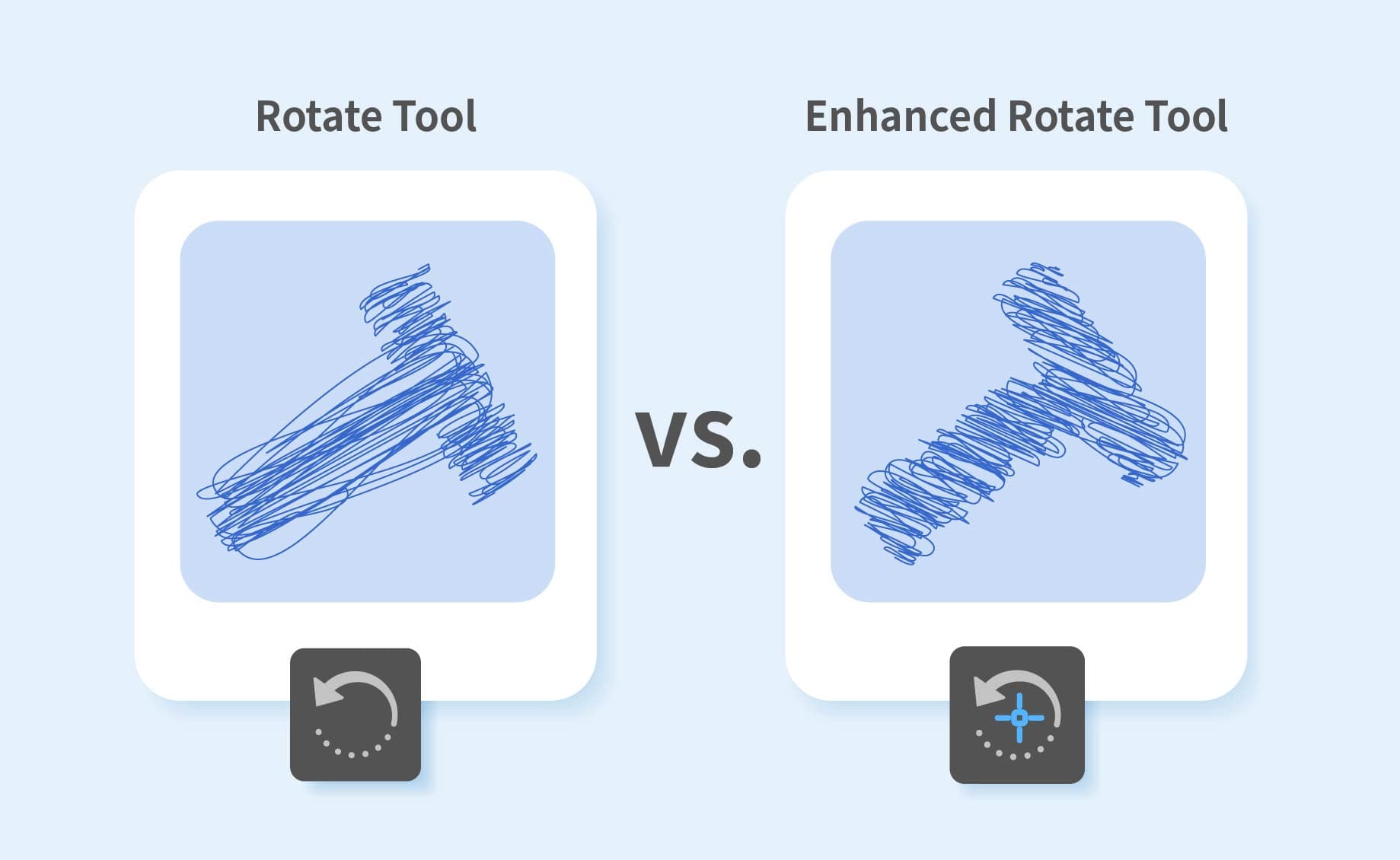
When such objects are rotated using Illustrator’s native tools, the system primarily rotates the path itself, without synchronizing the rotation of the underlying elliptical structures that define the brush.
As a result, attributes such as stroke thickness, roundness, and angle may shift, leading to visible deformation of the original brush effect. In design contexts where consistent brush shape and stroke direction are critical, this can negatively affect the final visual outcome.
Angular Discrepancies in Effects During Rotation:

Adobe Illustrator provides a wide range of effects, such as Drop Shadow and Scribble. When rotating an object with these effects applied, native tools typically rotate only the object itself, without synchronizing the direction or angle of the effect.
As a result, elements such as shadows or textures may become misaligned with the object’s new orientation. Correcting this often requires using Expand Appearance to convert the effect into vector shapes before rotation.
However, once the appearance is expanded, these effects can no longer be adjusted using their original parameters—such as shadow blur or scribble thickness—reducing flexibility for future edits.
IllustKit Enhanced Rotate Tool: Improving Rotation Behavior and Workflow Efficiency
Designed to address the limitations outlined above, IllustKit introduces the Enhanced Rotate Tool. While its operation remains similar to Illustrator’s native Rotate Tool, it incorporates several enhancements to improve rotation behavior:
Synchronous Rotation of Calligraphic Brush Structures:
When rotating objects with calligraphic brushes applied, the tool processes the underlying elliptical structures of the brush in synchronization with the path. This ensures that stroke attributes—such as thickness, roundness, and angle—remain consistent, reducing visual deformation during rotation.Angle Adjustment for Selected Effects:
For effects such as Drop Shadow and Scribble, the Enhanced Rotate Tool recalculates effect parameters during rotation to maintain visual alignment with the object’s orientation. In many cases, this removes the need to use Expand Appearance, preserving flexibility for non-destructive editing.⚠️Technical Note: Due to the architecture of Illustrator’s native effect system, the tool does not rotate the effect itself but instead adjusts its parameters to achieve a visually consistent result. Currently, this behavior is supported for calligraphic brushes, Drop Shadow, and Scribble effects.Persistent Anchor Point Position:
Unlike the native Rotate Tool, which often resets the anchor point to the object’s center, the Enhanced Rotate Tool preserves the previously defined anchor position. This enables more efficient repeated rotations around a custom axis.
Comparison: Native Rotate Tool vs. IllustKit Enhanced Rotate Tool
| Feature | Native Rotate / Selection Tool | IllustKit Enhanced Rotate Tool |
|---|---|---|
| Calligraphic Brushes | Rotates the path only; brush appearance remains unchanged, often resulting in stroke deformation | Rotates both the path and brush structure in sync, preserving original stroke proportions |
| Stylized Effects | Effect angles remain fixed; often requires Expand Appearance for manual adjustment | Adjusts effect angles (e.g., Drop Shadow, Scribble) while preserving editability |
| Anchor Memory | Anchor point resets to the object center; previous settings are not retained | Preserves the last custom anchor position for repeated rotations |
| Editing Flexibility | Often requires Expand Appearance, limiting further parameter adjustments | Maintains live effects during rotation, allowing continued editing in most scenarios |
| Workflow Efficiency | May require additional manual correction or destructive expansion | Enables synchronized rotation of objects and associated effects in a single step |
| Typical Applications | Standard shapes and simple path rotations | Calligraphic artwork, objects with live effects, and repeated radial transformations |
Conclusion
While Adobe Illustrator’s native Rotate Tool performs reliably in most standard scenarios, it has inherent limitations when handling calligraphic brushes and certain stylized effects. These constraints may lead to unintended visual shifts that affect the consistency of the final result.
The IllustKit Enhanced Rotate Tool addresses these limitations by providing additional control during rotation. Through synchronized handling of brush structures, adjustment of effect parameters, and preservation of anchor point positions, it enables more predictable and consistent transformation outcomes.
As a result, designers can maintain visual integrity while preserving the editability of objects and effects, supporting a more flexible and non-destructive workflow.