Illustrator Plugin Effects (fx): Display and Handling When the Plugin Is Not Installed
When creating special effects (fx) using third-party plugins such as IllustKit in Adobe Illustrator, display or rendering discrepancies may occur when files are shared with collaborators who do not have the plugin installed, or when opened on systems where the plugin is unavailable.
The following sections describe how Illustrator handles and displays these effects in environments where the required plugin is not installed.
Alerts and Limitations When Opening Files Without the Plugin Installed
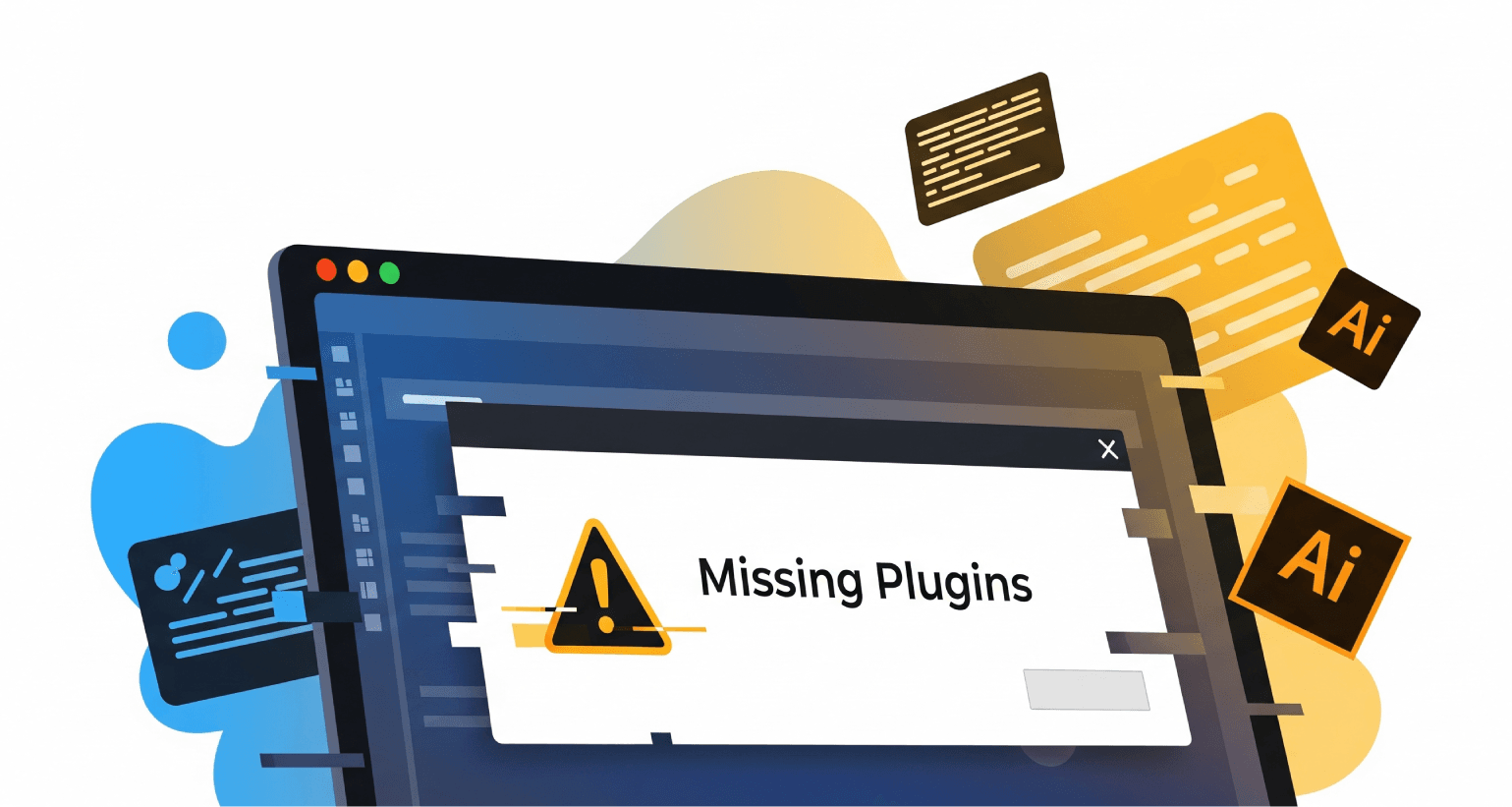
When Adobe Illustrator opens a file containing effects (fx) from a third-party plugin that is not installed on the system, a warning message may appear.
For example, if a file uses IllustKit’s “Reflective Gradient,” Illustrator may display a dialog indicating that the effect requires the corresponding plugin to render correctly.
This message indicates that the file contains effects that Illustrator cannot process natively because the required plugin (such as IllustKit) is not installed. After clicking “OK,” the file will still open.

“Unknown” Effects: Visual Persistence with Limited Editability
Once the file is opened, objects with plugin-applied effects generally retain their original appearance; however, their editability is limited. When these objects are selected, the corresponding effects in the Appearance panel are labeled as “(Unknown).”

Under these circumstances, many common editing operations may not function as expected, including:
Moving, rotating, or scaling objects
Modifying colors or opacity
Adjusting stroke weights
Because Illustrator cannot interpret the “Unknown” effect, its parameter settings are not accessible for further adjustment.
How to Handle “Unknown” Effects
When encountering an “Unknown” effect due to a missing plugin, the following methods can be used:
Expand Appearance:
If you want to preserve the current visual result but no longer need to adjust its parameters, go to Object > Expand Appearance. Illustrator will convert the “Unknown” effect into editable native objects (such as paths or standard gradients). This ensures that the file displays and outputs correctly in environments where the plugin is not installed.⚠️Note: Expand Appearance is an irreversible operation. Once applied, the original plugin effect cannot be restored, and its parameters can no longer be adjusted. Use this option only after confirming that no further modifications are required.Delete the Effect:
If the visual effect is no longer needed or full editability of the base object is required, select the “Unknown” effect in the Appearance panel and click the Delete (Trash) icon. The object will revert to its state prior to the plugin effect being applied.
The Ideal Solution: Installing the Required Plugin
The most reliable way to ensure proper display and full editability is to install the required plugin on your system. This removes warning messages and editing limitations, allowing the workflow to proceed without interruption while retaining full control over effect parameters.